
Can You Change a YouTube Thumbnail After Publishing?
Yes. YouTube lets you change a video's thumbnail as many times as you want, at any point in the video's life. Five minutes after publishing or five months later, the process is identical:
- The video URL never changes, so existing links and embeds keep working.
- Views, watch time, likes, comments, and monetization status are all untouched.
- Playlists and search results keep listing the video; only the card image updates.
Requirements for a custom thumbnail on a standard video:
- 16:9 aspect ratio, minimum 640 x 360 px, 1280 x 720 px recommended
- File under 2 MB, in JPG, PNG, or GIF format
- Your account must be phone-verified before YouTube lets you upload custom thumbnails
So the real question is not whether you can change it. It is when a change helps, when it quietly damages momentum, and how to avoid needing one in the first place.
How to Change Your YouTube Thumbnail
On Desktop (YouTube Studio)
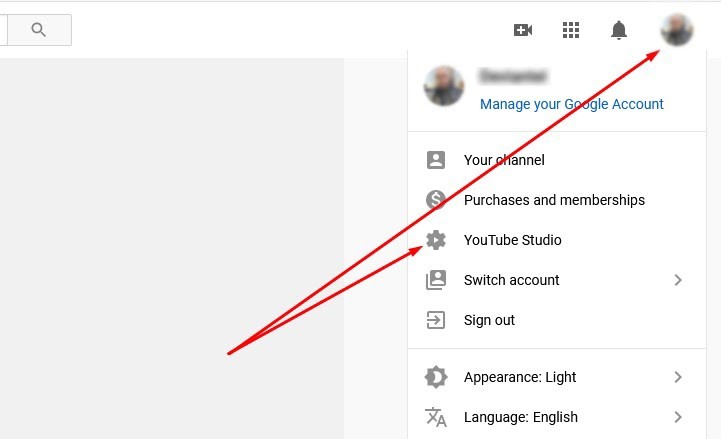
- Open YouTube Studio and go to Content.
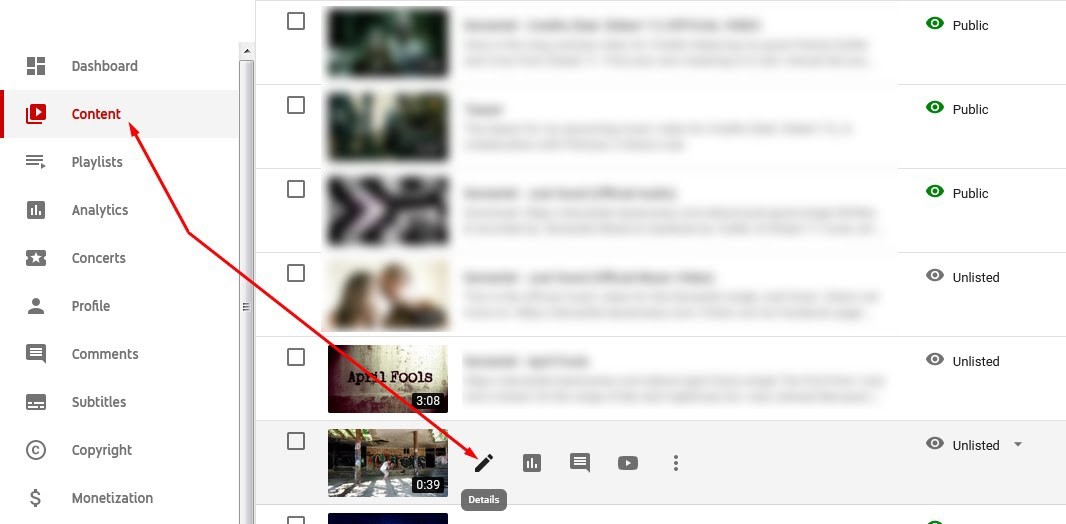
2. Hover over the video and click the pencil (Details) icon. 3. In the Thumbnail box, click Upload thumbnail (shown as Upload file in some interface versions) to use an image from your computer, or select one of the auto-generated frames.
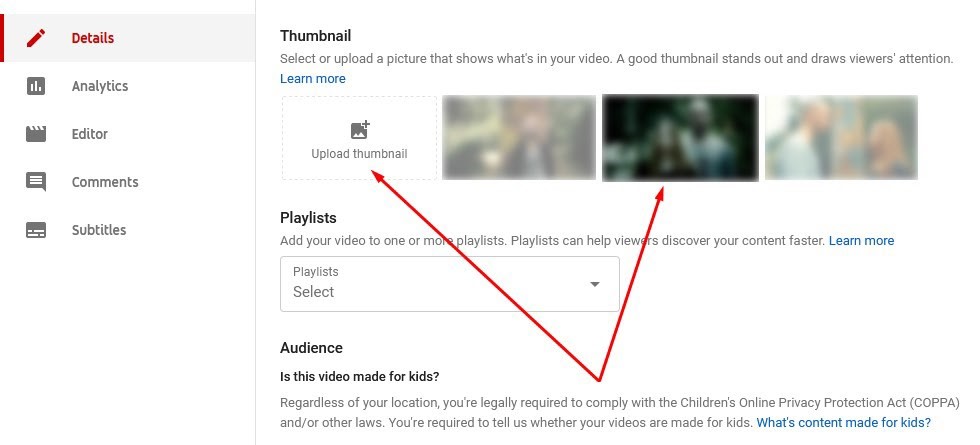
4. Check the preview carefully, especially the bottom-right corner, where the video duration badge sits. 5. Click Save. The change usually appears within minutes, but caches on different devices and apps can delay the updated image for up to several hours.
On Mobile (YouTube Studio App)
Open the video in the app, tap the pencil icon, tap Edit thumbnail, then pick a generated frame or upload from your device depending on your app version. The exact options vary slightly between versions and regions.
On YouTube Shorts
Shorts thumbnails work differently from standard videos. You choose the frame during the upload flow, and the desktop metadata card in Studio is the most reliable place to manage the image afterward. Shorts support fewer thumbnail options than long-form videos, so test the frame before publishing rather than relying on changing it later.
Does Changing a Thumbnail Affect Views?
*Nothing resets. But where the video goes next* can change.**
What a thumbnail change never affects:
- View count, watch time, likes, and comments are never reset.
- The video URL, embeds, and playlist placements stay the same.
- Legacy analytics remain in Studio, so you can always see the video's full history.
What it can affect — and this is the honest part:
- Ongoing momentum. After publishing, YouTube shows your video to impression batches and learns from how viewers respond. Changing packaging during that learning phase interrupts the feedback loop the algorithm is currently working with. A single deliberate swap after enough data is fine; rapid churn is not.
- Clean attribution. Once you swap, the CTR graph mixes the old and new designs. Unless you note the exact date of every change, you lose the ability to say which image produced which performance.
- Returning-viewer trust. If someone recognized your video by its thumbnail and it looks completely different the next day, that recognition disappears.
The practical rule: decide with data, not anxiety. One change made for a specific reason beats five changes made while worried.
When Should You Change Your YouTube Thumbnail?
Change it when:
- CTR is clearly below your channel's own median after a meaningful impression base — not the first 100 impressions, which are noisy.
- The title and thumbnail promise conflict. If the image says one thing and the title says another, viewers bounce and retention reports it.
- The timestamp badge overlaps important content in the bottom-right corner.
- The design fails on phones: unreadable text at a glance, weak contrast against YouTube's dark mode feed, or the hook subject sitting too low.
- An evergreen video needs a refresh. Updating the packaging of a video that still gets search traffic months later is a common and legitimate revival tactic.
Do not change it when:
- You are inside the first 24 hours of a launch and panicking. That is precisely the moment to read your data instead of churning designs. (See our guide on why testing before publishing matters.)
- An experiment is running. If you have started YouTube's native Test & Compare feature, never edit the thumbnail manually mid-experiment — you invalidate the test.
- CTR looks fine but views are stalling. At that point the bottleneck is usually retention or topic demand, not the card image. Changing packaging will not fix it, and it will muddy the very analytics you need to diagnose the real cause.
Two thumbnails, no clear winner?
Compare them side by side on contrast, safe-zone risk and legibility at phone size before you commit one to the upload.
| Situation | Change the thumbnail? |
|---|---|
| CTR far below channel median, sufficient impressions | Yes |
| Title and thumbnail contradict each other | Yes |
| Mid-launch panic, fewer than ~500 impressions | No — wait for signal |
| CTR healthy, weak retention | No — packaging is not the problem |
| Evergreen video, declining impressions months later | Yes — scheduled refresh |
Why You Should Test Thumbnails Before Publishing
Changing a thumbnail after upload is a rescue move. Testing before upload is prevention. The rescue path costs you real impressions spent on designs that may be wrong; the prevention path costs you a few minutes of checking at zero risk.
Two or three days before publishing, check your design against this list:
- Two or three genuinely different variants — different shot scale, different text presence, different emotional angle. Not the same image with the hue shifted.
- The 120 px squint test. Shrink the card to smartphone-feed size. If the message disappears, the message does not exist.
- Both feed themes. A thumbnail that pops on the light theme can dissolve into the dark theme background if its edges are dark.
- The bottom-right [safe zone](/youtube-thumbnail-analyzer). Whatever YouTube overlays there (duration badge) must cover nothing essential.
- Title-first-48 characters. The thumbnail and the first visible words of the title split the job of the hook. Design them together, not around each other.
If all five pass on a variant, publish it. Then leave the video alone long enough to collect honest data.
How PreYT Helps You Analyse Thumbnails Before Uploading
PreYT exists because the checklist above takes longer than it should when done by hand — and because a "feeling" about a design is not a measurement. Two free tools cover the pre-upload work:
- [YouTube Thumbnail Analyzer](/youtube-thumbnail-analyzer) — runs browser-based checks on contrast, luminance separation, bottom-right safe zones, and mobile glanceability, and explains what each score does and does not measure.
- [YouTube Thumbnail Tester](/youtube-thumbnail-tester) — previews your thumbnail inside simulated feed cards so you can compare variants side by side before anything touches your channel.
These produce heuristic diagnostics, not guarantees of CTR — but they catch the mechanical failures (cutoffs, contrast collapses, badge overlaps) that quietly kill launch videos every day, at a moment when fixing them is still free.

How your thumbnail registers when reduced to a smartphone screen dimension.
- High visual contrast between central subject and background.
- Bottom-right timestamp zone is clean and unobstructed.
- Strong luminance gradient ensures edge visibility in Dark Mode.
Want Full Multi-Model Packaging Forecasting?
PreYT checks your draft against mobile and desktop feeds, verifies title character cutoffs, and calculates expected click velocity before filming.
Start Free AuditSave Your Results
We'll email you this analysis — your score, contrast and safe-zone status, and the fix list.
No signup. No spam. Just this email. Privacy
Frequently Asked Questions
How many times can you change a YouTube thumbnail?
There is no limit. You can change it as often as you like, indefinitely. The only practical constraint is analytical: every change makes your CTR data harder to interpret, so deliberate, well-timed changes beat constant churn.
Does changing a YouTube thumbnail reset views?
No. Views, watch time, likes, comments, playlists, and monetization are never reset by a thumbnail change. Nothing historical is affected.
Why is my new thumbnail not showing?
Three common reasons: device and CDN caches (give it up to several hours and hard-refresh), embedded views on external sites (which can keep showing the old image longer), or looking at a different video/copy of the same video than the one you edited.
Can you change the thumbnail of a scheduled YouTube video?
Yes. A scheduled video behaves like a published one in your details page, so you can upload or swap the thumbnail any time before it goes live — which is exactly the right moment to finalize packaging, not after launch.
Can you add thumbnails to YouTube Shorts?
Shorts have reduced thumbnail options compared to long-form videos. You can typically pick a frame from the video itself, and the desktop metadata card in Studio is the most dependable way to manage it. Full custom-thumbnail workflows are not as flexible for Shorts as they are for standard uploads.
What about changing the title with the thumbnail?
The same logic applies: you can change titles any time, and historically expressed data is never reset. Creators commonly change a title and thumbnail as one coordinated packaging update. The difference between a coordinated update and anxious churn is a written reason and enough impression data behind the decision.
Two thumbnails, no clear winner?
Compare them side by side on contrast, safe-zone risk and legibility at phone size before you commit one to the upload.
Free tools for this topic
Take the checklist with you
12 checks, each mapped to the free tool that tests it. No account, no card.
No signup. No spam. Just this email. Privacy